Set up your UD Gmail account in Microsoft Outlook
Body
- Open the Microsoft Outlook desktop app .
-
In the Welcome to Outlook menu, type your email address, and choose Advanced options. Then check the Let me set up my account manually box.

-
Select Connect.
-
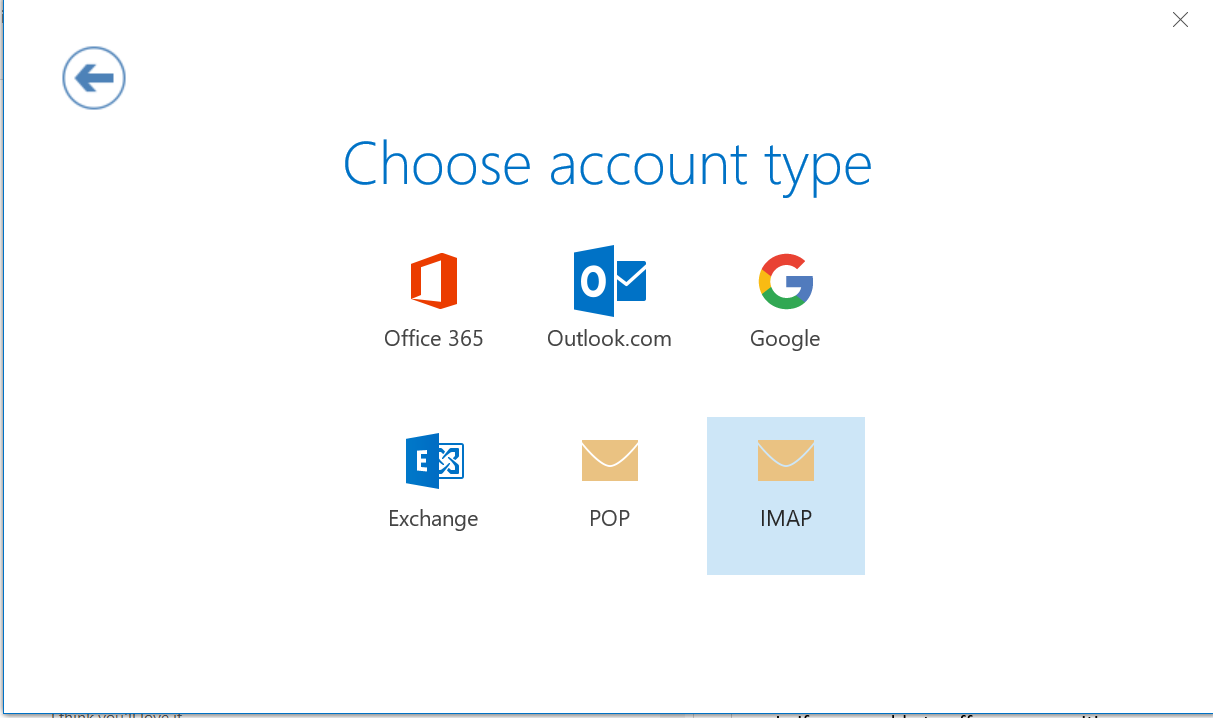
Choose account type Google.
- Verify the server settings are correct:
- Incoming mail server: imap.gmail.com
- Port 993
- Encryption method SSL/TLS
- Outgoing mail server: smtp.gmail.com
- Port 465
- Encryption method SSL/TLS

-
Choose Connect.
-
Type your UDelnet ID in the User Name field. For example, Mary Bluehen with a UDelNetID of marybh would type marybh
-
Type your UDelNetID password, and click Log in.
-
Provide your 2FA code, check the Remember this browser box, and click Log in.
-
Choose Allow.
-
Click OK.
Return to top
Details
Details
Article ID:
573
Created
Tue 12/17/19 11:56 AM
Modified
Fri 12/5/25 12:02 PM